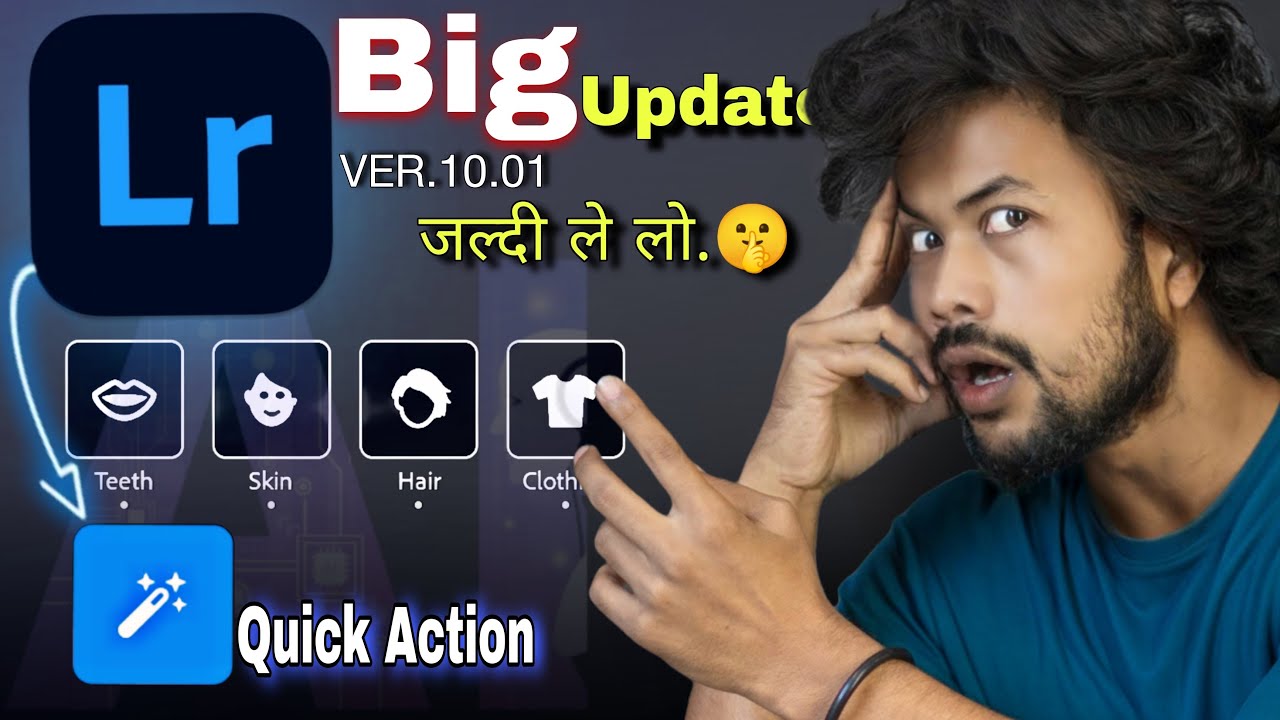
Lightroom’s Big Update: Exploring the New Quick Action Features
In the latest Adobe Lightroom update, Adobe has introduced a range of new features aimed at speeding up and enhancing the photo editing process. Among these, the Quick Action tools stand out, offering photographers and creators a streamlined workflow for common adjustments and touch-ups. Whether you’re a professional or an enthusiast, these features make it easier than ever to edit photos quickly without compromising on quality. This article will walk you through Lightroom’sLightroom’s new Quick Action features and explain how they can benefit your workflow.

1. What Are Lightroom’s New Quick Action Features?
The Quick Action features in Lightroom are a set of pre-configured tools that allow users to apply commonly used edits with minimal effort. This feature simplifies tasks such as removing unwanted objects, enhancing skies, or adjusting backgrounds. By using these tools, photographers can quickly make impactful changes to images, saving time and achieving consistent results.
Adobe has designed these tools with accessibility in mind, meaning even users with minimal experience can effectively use them. The Quick Action features are especially valuable for batch editing and for situations where speed is essential, like social media content creation or event photography.
2. How Quick Action Features Save Time
For any photographer, time is a crucial resource. Lightroom’s Quick Actions are built to address this need, offering tools that condense complex edits into single steps. For example:
• One-Tap Edits: Quick Actions allow you to apply edits such as exposure adjustments, brightness tweaks, or color correction with just one click.
• Content-Aware Tools: New tools include AI-driven object removal, which detects and eliminates unwanted objects seamlessly. This is perfect for wedding or event photographers who need to remove distracting elements without spending hours retouching.
• Preset Integrations: Quick Actions can work in conjunction with your saved presets, applying your unique style to images in seconds. This is especially useful for maintaining a consistent aesthetic across multiple images.
By eliminating the need for manual fine-tuning in some cases, Quick Actions enable photographers to edit large collections quickly and focus more on capturing moments.
3. Key Quick Action Tools in Lightroom’s New Update
Adobe has included several noteworthy tools within the Quick Actions set, each designed to enhance specific aspects of the editing process.
A. Sky Replacement Tool
One of the most eye-catching additions, the Sky Replacement tool enables users to replace dull or overexposed skies with vivid presets or customized adjustments. Powered by Adobe Sensei (Adobe’s AI technology), this tool recognizes sky areas in a photo and provides a selection of dramatic skies. You can choose from various effects, ranging from vibrant sunsets to cloudy or clear blue skies.
This feature is ideal for landscape photographers or anyone looking to add visual impact to outdoor shots. Plus, with just a few clicks, it creates a seamless look that’s difficult to achieve manually.
B. Object Removal
The new Object Removal tool leverages AI to identify and remove distracting elements in your photos. From litter on the ground to accidental photobombers, you can clear up your images without the hassle of extensive editing. The tool uses content-aware technology to ensure that the area surrounding the removed object blends naturally, leaving no traces of editing.
C. Background Blur
For portrait photographers, the Background Blur tool is a game-changer. You can instantly apply a soft blur to backgrounds, enhancing the subject’s focus and adding a professional touch. This tool is especially useful for isolating subjects without requiring advanced retouching skills or specialized equipment.
D. Instant Sharpening
Quick Actions also include a sharpening feature, allowing you to enhance image clarity with one tap. This is particularly useful for low-light images or shots that lack sharpness. The tool applies precise sharpening to defined areas, adding depth and definition where needed.
E. Tone and Color Adjustments
The Tone and Color adjustments within Quick Actions offer predefined settings to balance your images effectively. This includes vibrancy, saturation, highlights, and shadow adjustments—all of which can be applied instantly to create a balanced, polished look.
4. Benefits of Using Quick Actions in Lightroom
A. Streamlined Workflow
By reducing the number of steps required to achieve complex edits, Quick Actions create a seamless workflow. This is particularly helpful for photographers working with tight deadlines or editing large batches of images.
B. Accessibility for All Skill Levels
Quick Actions democratize professional editing by making it accessible to all users. Beginners can produce high-quality edits, while professionals save time, making it a tool that benefits everyone.
C. Enhanced Creative Control
Despite the streamlined process, Quick Actions still provide flexibility for customization. Users can modify presets or adjust settings, maintaining control over the final look of their edits.
D. Consistency Across Projects
For photographers and social media managers who need to maintain a consistent style, Quick Actions offer a way to apply uniform edits across multiple images, which is crucial for branding and personal style.
5. Practical Applications of Quick Actions for Different Photography Styles
A. Wedding and Event Photography
Quick Actions can simplify the demands of event photography. Removing unwanted objects, enhancing lighting, and applying tonal adjustments can be achieved in minutes, allowing photographers to deliver polished, professional results faster.
B. Landscape and Travel Photography
The Sky Replacement tool and instant tonal adjustments are particularly advantageous for landscape photographers. Quick Actions let users capture nature’s beauty without waiting for ideal weather conditions or spending hours on manual sky adjustments.
C. Social Media and Content Creation
Social media creators can use Quick Actions to edit images efficiently, ensuring a polished look across posts. The ability to create consistent aesthetics quickly helps maintain engagement and brand identity on platforms like Instagram or Facebook.
D. Portrait Photography
Portrait photographers benefit from features like the Background Blur and Object Removal tools, which enhance the subject’s presence without the need for heavy retouching. This is particularly useful for headshots, fashion photography, and family portraits.
6. Tips for Making the Most of Lightroom’s Quick Actions
To get the best out of Quick Actions, keep these tips in mind:
•Experiment with Defaults: Start with default Quick Action settings, then adjust them to match your specific aesthetic needs.
•Combine with Presets: Apply your unique Lightroom presets with Quick Actions for a cohesive look.
•Focus on Batch Editing: When working with multiple images, apply Quick Actions to batches for a consistent style, perfect for event galleries or social media feeds.
7. Conclusion: Elevate Your Editing with Lightroom’s Quick Actions
Lightroom’s latest update brings Quick Action tools that enhance productivity and simplify editing tasks. Whether you’re a professional photographer working against deadlines or an amateur looking to improve your images, these tools make high-quality editing accessible and efficient. The addition of AI-powered adjustments like Sky Replacement and Background Blur enables photographers to elevate their work while saving precious time.
As you explore Lightroom’s Quick Actions, consider how each tool fits into your unique editing style. With these new features, Adobe continues to push the boundaries of photo editing, offering a powerful suite that meets the demands of today’s fast-paced digital world. Start experimenting with Quick Actions to streamline your workflow, enhance your creative output, and enjoy a more intuitive editing experience in Lightroom.
More Details video on YouTube :-
https://youtu.be/eXzn_xKvpaM?si=TjMSdx7VfwEO5P0e